Fix Grainy Laptop Webcam Video With Lighting and OS Settings
Hardware limits cause poor video, but lighting and OS tools can maximize sensor performance

Laptop webcam quality is primarily constrained by physics rather than software defects. The ultra-thin bezels of modern clamshell designs restrict sensor size to fractions of what smartphones utilize, resulting in smaller pixels that capture significantly less light. This hardware limitation forces the image signal processor to apply aggressive gain, creating the digital noise and washed-out colors common in video calls. While users cannot upgrade the internal sensor, understanding this bottleneck allows for targeted adjustments that maximize the available hardware performance without purchasing external peripherals.
Optical clarity is the first variable to address before adjusting any digital settings. Laptop cameras are positioned directly above the keyboard and trackpad, making them frequent contact points for finger oils and dust during daily use. Even microscopic smears scatter incoming light before it reaches the sensor, causing permanent softness that no amount of sharpening can fix. A dry microfiber cloth should be used to clean the lens element; household glass cleaners or alcohol-based wipes can degrade the anti-reflective coatings applied to most laptop camera modules.
Ambient lighting conditions dictate image quality more than any driver update because small sensors rely entirely on photon volume. Backlighting from windows or overhead fixtures creates high-contrast scenes that exceed the dynamic range of budget camera modules, forcing the auto-exposure algorithm to underexpose the subject’s face. Positioning a light source directly in front of the user at eye level eliminates harsh shadows and provides the consistent illumination necessary for accurate color reproduction. Dedicated LED panel lights offer the most control, but existing desk lamps repositioned behind the monitor can achieve similar results.


The display itself can serve as a supplemental light source when dedicated equipment is unavailable. macOS 26.2 introduced Edge Light for Apple Silicon Macs, which illuminates screen borders with a neutral white tone specifically calibrated for facial lighting. Windows lacks a native equivalent, but third-party utilities like LightON replicate this functionality by turning the monitor into a softbox. This technique is particularly effective in dim environments where adding a separate lamp would create unwanted glare or reflections on glasses.
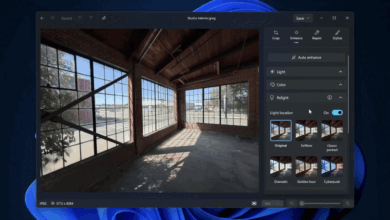
Operating system-level controls provide granular adjustments that override application-specific defaults. Windows 11 centralizes camera management under Bluetooth & Devices > Cameras, allowing users to set global brightness, contrast, and saturation values that persist across Zoom, Teams, and other platforms. Enabling Video HDR in this menu helps balance exposure in unevenly lit rooms by compressing the tonal range. These system-level changes prevent individual apps from resetting parameters to suboptimal factory defaults during updates or reinstallation.
Hardware-accelerated processing offers another avenue for improvement on systems with discrete graphics. NVIDIA Broadcast leverages RTX tensor cores to perform real-time noise reduction and eye-contact correction that would otherwise overwhelm the CPU. This AI-driven processing compensates for low-light grain and maintains natural gaze direction even when reading scripts off-screen. Users without NVIDIA hardware can achieve similar computational enhancements through Camo, which uses cross-platform algorithms to refine color grading and reduce artifacts independent of GPU architecture.
Apple users have access to Studio Light via the Control Center camera menu, which applies a computational portrait effect that brightens the face while subtly darkening the background. This feature works in conjunction with Edge Light to simulate professional three-point lighting using only the built-in camera and display. Both tools activate automatically when the camera is engaged and require no additional configuration beyond enabling them in the menu bar.
When optimization yields diminishing returns, leveraging existing mobile hardware often outperforms mid-range external webcams. iPhones connected to Macs via Continuity Camera utilize their superior sensors and neural engines for video input, bypassing laptop camera limitations entirely. High-end mirrorless cameras with HDMI-to-USB capture cards provide broadcast-quality alternatives for users requiring professional-grade output beyond what integrated solutions can deliver.