

Why an iPhone Always-On Display Turns Black—and What to Check
Power settings, scheduled Sleep Focus and proximity detection can all switch off the screen.
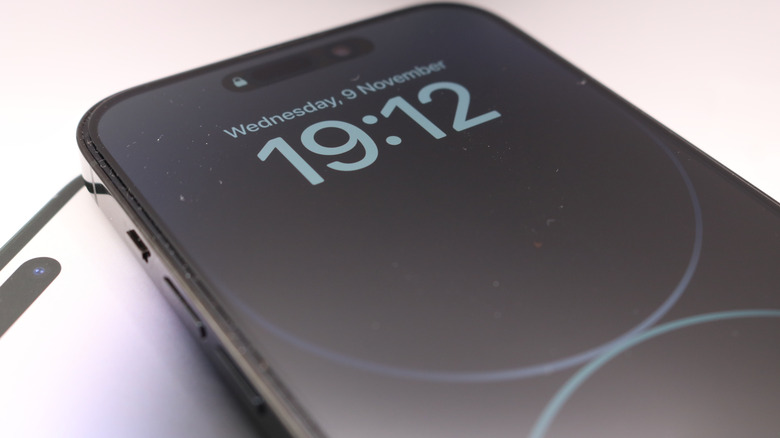
An iPhone’s Always-On Display can turn completely black even when the feature is enabled. The usual causes are an automatic power-saving trigger, a Focus mode filter or a sensor state intended to conserve battery and prevent screen burn-in. The display may also shut off when the phone detects that it is face-down, inside a pocket or bag, or no longer near its owner’s paired Apple Watch.
The feature is available on select iPhones with Low-Temperature Polycrystalline Oxide (LTPO) OLED displays. When idle, those panels can reduce their refresh rate to as low as 1Hz, showing a dimmed Lock Screen with the time, widgets and notifications while limiting battery use. Older base-tier models with standard LTPS screens cannot lower their refresh rates sufficiently without excessive power drain and thermal buildup.
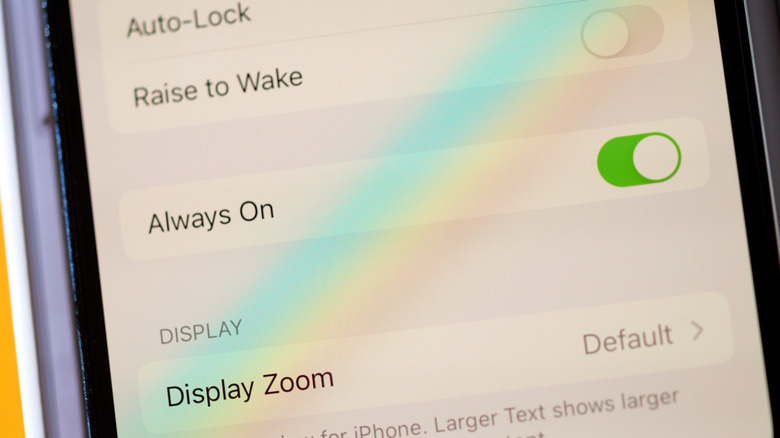
On a supported phone, first check Settings > Display & Brightness > Always On Display and make sure the main switch is enabled. Low Power Mode overrides that setting: it disables non-essential background processes, ProMotion high-refresh rendering and the Always-On Display panel. On iPhone 15 and later, open Settings > Battery > Power Mode to turn Low Power Mode off. On the iPhone 14 series, the switch is directly under Settings > Battery.

 The image is credited to boyudon/Shutterstock.
Newer iOS versions also offer Adaptive Power in the Power Mode menu. When enabled, it automatically engages Low Power Mode if the remaining battery charge falls below 20 percent, overriding Always-On Display. A different override comes from Sleep Focus, which turns off the Lock Screen display to eliminate ambient light during rest hours. To check it, swipe down from the top-right corner, tap Focus in Control Center and deselect Sleep if it is active.
Sleep Focus may return at a scheduled bedtime set in the Apple Health app. To change that routine, open Control Center, tap Focus, tap the three dots beside Sleep and select Settings. Scroll to Schedule, select Next Schedule and turn Schedule off, or change the sleep windows under Schedule and Options.
Other Focus profiles, including Work, Fitness and Personal, can have their own Always-On Display filters. In Control Center, open Focus and use the options menu for the relevant mode to reach its configuration settings. Under Focus Filters, select Add Filter, choose Always On Display in System Filters and set the filter so the screen remains active while that mode is engaged.
Some shutoffs require no setting change. The front-facing TrueDepth camera array and ambient light sensors monitor the phone’s surroundings; placing it face-down on a surface or putting it in a pocket or bag cuts power to the display panel instantly. Oils, dust or a misaligned screen protector over the top sensor cluster can make the phone register a constant face-down state. Long periods without touch interaction or physical movement can also trigger an extended idle sleep mode.
When an iPhone is paired with an Apple Watch, Bluetooth Low Energy (BLE) signal strength is used to track distance. If the person wearing the watch walks out of Bluetooth range or leaves the room, the display switches off until proximity is restored. An active Apple CarPlay connection likewise turns it off to reduce driver distraction in the vehicle cabin. Using the iPhone as a macOS camera through Continuity Camera disables the screen to manage thermal output and conserve system resources.
The supported models are iPhone 14 Pro and iPhone 14 Pro Max; iPhone 15 Pro and iPhone 15 Pro Max; iPhone 16 Pro and iPhone 16 Pro Max; iPhone 17, iPhone 17 Pro and iPhone 17 Pro Max; iPhone Air; and iPhone 18 Pro and iPhone 18 Pro Max.
If the screen still shuts off unexpectedly after the settings are checked, wipe the glass around the Dynamic Island or notch with a microfiber cloth to clear grime or smudges from the ambient light and proximity sensors. If moving the phone makes the screen brighten fully or switch off erratically, turn Raise to Wake off and back on under Settings > Display & Brightness to reset its motion-trigger thresholds.
Battery use can also be reduced without disabling the feature: under Settings > Display & Brightness > Always On Display, turn off Show Wallpaper or Show Notifications independently to leave a black screen showing only the time and widget data. Restarting the iPhone clears temporary system memory, resets system display daemons and re-initializes ambient lighting sensor routines.







One Comment