
Bridging Android and Roku: How Direct Screen Mirroring and Wireless DeX Expand Smart TV Utility
Living room streaming hardware doubles as desktop displays, but network protocol fragmentation determines compatibility.
Living room streaming hardware doubles as desktop displays, but network protocol fragmentation determines compatibility.
Smart TV ecosystems have expanded far beyond passive streaming. For users looking to project personal photo albums, run video calls, or showcase slides on a larger display, screen mirroring offers a direct bridge between mobile devices and living room displays. However, achieving a smooth wireless connection between an Android smartphone and a Roku streaming box depends entirely on the underlying display transmission protocols each device employs.
At the center of this cross-device ecosystem is Miracast, an open standard launched by the Wi-Fi Alliance in 2012. Miracast operates via Wi-Fi Direct, allowing two devices to establish a direct, peer-to-peer connection without relying on a central internet router. Roku streaming players and integrated smart TVs widely support Miracast, making screen mirroring straightforward for phone manufacturers that maintain the protocol.
Hardware compatibility, however, is not uniform across the Android ecosystem. Manufacturers like Samsung, LG, and OnePlus include native Miracast support, branded under names such as Smart View, Screen Share, or Screen Projection. Conversely, Google removed native Miracast support from its line of Google Pixel phones starting with Android 6.0, opting instead for proprietary Google Cast and DIAL protocols. As a result, Pixel owners cannot mirror their full screen directly to a Roku, though individual casting remains functional within supported applications like YouTube or Netflix.
To configure screen mirroring on a Roku device, navigate to the side menu on the home interface, open Settings, and select System > Screen mirroring > Screen mirroring mode. Users can set the permission level to either ‘Prompt’ for individual request approvals or ‘Always Allow’ on secure home networks. Both the mobile device and the Roku player must be connected to the same Wi-Fi network for discovery.

On Samsung Galaxy hardware, initiating a link requires opening the Quick Settings menu by swiping down from the top-right corner of the screen and tapping Smart View (or navigating through Settings > Connected Devices > Smart View). Once the phone scans and detects the targeted Roku unit, selecting the device name and confirming the connection establishes the feed.
To maintain privacy during multi-app usage, Samsung includes a floating Smart View control interface. Tapping this widget presents an option to cast a specific application exclusively—such as streaming video—preventing incoming phone notifications or personal messaging feeds from displaying on the television screen. If letterboxing occurs or audio fails to route correctly, users can adjust aspect ratios directly within the floating control menu or reassign audio destination settings via the phone’s Media Output panel.
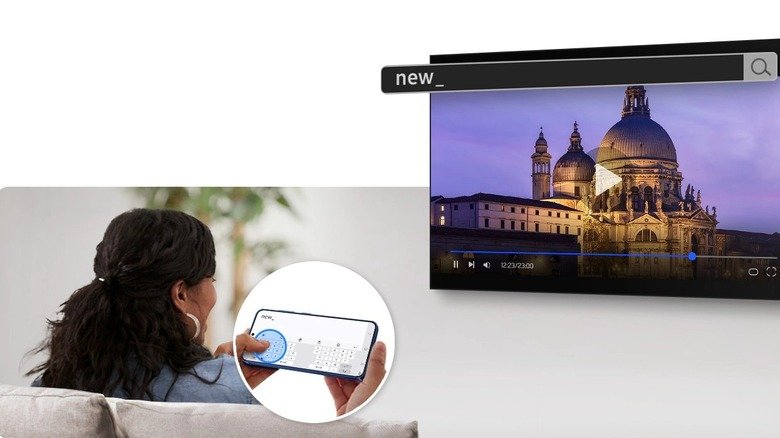
Beyond basic screen mirroring, compatible Samsung Galaxy devices can leverage wireless Samsung DeX to transform a television into a desktop computer interface. First introduced alongside wired docking systems, Samsung DeX now broadcasts wirelessly over Miracast. Activating the feature via Quick Settings > Wireless DeX converts the connected Roku screen into a multi-window desktop operating system, while the smartphone display functions as a multi-touch trackpad and virtual keyboard.
Wireless display transmission can introduce latency due to video encoding overhead. To reduce input lag when managing desktop applications or navigating wirelessly streamed media, enabling the target television’s dedicated low-latency picture mode, often designated as ‘Game Mode’, can improve overall responsiveness.