
How to Turn Off Google Play Protect on Android and Understand the Risks
A guide to turning off Android's built-in app scanning feature and managing platform security risks.

Android has long maintained a reputation for operating system openness, permitting users to install software packages from alternative marketplaces and direct file downloads. However, for power users seeking complete manual control over their devices, Google Play Protect often acts as an active gatekeeper by flagging custom software, pausing installations, or removing unverified tools. While switching off this automated system grants full operational freedom, disabling it leaves devices significantly more exposed to software vulnerabilities and malicious code.
First rolled out in 2017, Google Play Protect serves as the native security foundation for the Android ecosystem. Operating continually in the background, the threat detection engine checks applications prior to installation and periodically scans on-device storage for malicious behavior. Official operational metrics indicate that Play Protect flagged over 27 million new malicious software threats in 2025 while stopping approximately 266 million unauthorized installation attempts originating from external web downloads.
Beyond checking software hosted on the official storefront, the security service continuously evaluates sideloaded application packages for predatory behaviors. It monitors background network connections, audits excessive system permissions, and issues direct warnings when an installation file attempts to hide its true capabilities or request access to sensitive personal data.
Not all devices permit users to freely turn off these automated controls. Enterprise environments and educational institutions that enforce device management policies often restrict access to administrative toggles to safeguard internal networks. Similarly, individuals enrolled in the Google Advanced Protection Program—an elevated security tier aimed at journalists, political figures, and public officials prone to targeted cyberattacks—cannot disable Play Protect without first exiting the program entirely.
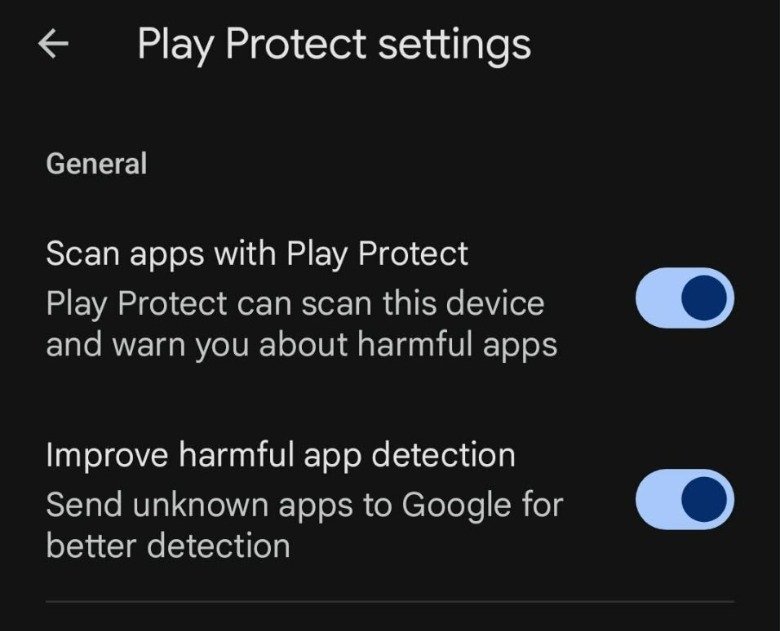
To turn off Play Protect on standard consumer hardware, open the Google Play Store application and select the user profile icon in the upper-right corner. From the account menu, tap on the Play Protect tab, select the gear icon located in the upper corner to enter the configuration menu, and toggle off the setting labeled “Scan apps with Play Protect.”
Within the same configuration panel, users can also toggle off “Improve harmful app detection.” When kept active, this telemetry feature automatically submits unknown application binaries obtained outside official channels to Google servers for analysis. Users enrolled in the Advanced Protection tier must navigate to their Google Account security portal, unenroll from the program, and restart their device before the option to turn off scanning becomes accessible.
Disabling these protections shifts the burden of software verification completely onto the user. Without active real-time scanning or automated signature matching, mobile devices become considerably more susceptible to sophisticated banking trojans, background keyloggers, and fraudulent applications designed to exfiltrate private credentials.