Apple’s AI-Powered Siri in iOS 18 Accesses More Personal Data — Here’s How to Lock It Down
Step-by-step guide to limiting Apple Intelligence data access, plus the hidden switch to revert to classic Siri

Apple’s long-awaited overhaul of Siri arrived with iOS 18.1 and 18.2, bringing large language models that can rummage through your messages, notes, and third-party apps to answer questions. The assistant is undeniably smarter — it can summarize a week of group chats or find that recipe you saved in Notes — but the privacy trade-offs are significant. Here is what actually changes, where your data goes, and every switch you can flip to keep the new Siri on a short leash.
The core difference from the old Siri is a framework called App Intents. When developers adopt it, their apps expose structured data — calendar events, to-do lists, message threads — to the system-wide semantic index that powers both Spotlight and the new Siri. By default, that index includes every Apple app and any third-party app that has updated for iOS 18. The assistant decides on the fly whether a request can be handled on-device or needs Apple’s Private Cloud Compute (PCC) servers. Apple says PCC discards data immediately after processing and that even Apple cannot view it, but the mere fact that encrypted shards of your personal context leave the device is a departure from the fully local architecture of the legacy assistant.
If you want to keep specific apps out of Siri’s knowledge base, the control lives in an unexpected place: Settings → Apps → [App Name] → Search → Show Content in Search. Toggle that off and Siri will act as though the app’s contents do not exist, even if you explicitly ask about them. The “Apple Intelligence & Siri” toggles you see on the same screen govern only whether the app appears in predictive suggestions on the lock screen or in Search; they have no bearing on what the model can read.
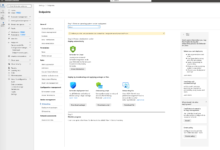

A separate capability, on-screen awareness, lets Siri analyze whatever is currently displayed — a screenshot, a webpage, a PDF — when you invoke the assistant while that content is visible. That analysis may route through PCC. There is no granular per-app switch for this; the only way to prevent it is to avoid invoking Siri while sensitive material is on screen, or to disable Siri entirely.
Apple does not use your Siri interactions for model training by default, but the setup assistant may have nudged you into opting in. Confirm the setting at Settings → Privacy & Security → Analytics & Improvements → Improve Siri & Dictation. Leave it off.
For users who want the voice-activated convenience of CarPlay or HomePod without the new data flows, Apple hid a kill switch inside Screen Time: Settings → Screen Time → Content & Privacy Restrictions → Siri → Allowed Siri Version → Siri Classic. Selecting “Siri Classic” reverts the assistant to the pre-LLM behavior across all your devices signed into the same Apple ID. The nuclear option — Settings → Siri → Turn Off Siri — disables the assistant completely.
The rollout remains gradual. Apple Intelligence requires an iPhone 15 Pro, iPhone 16, or M-series iPad/Mac, and users must join a waitlist that Apple says clears within hours. As of iOS 18.2, ChatGPT integration is opt-in and routes through a separate privacy agreement with OpenAI. Regulators in the EU have so far blocked Apple Intelligence entirely over Digital Markets Act concerns, meaning European users on iOS 18 see none of these features — or the associated privacy decisions — until Apple complies.