
Windows Diagnostic Suite Provides 60-Second System Health Audits via Legacy Command
The "perfmon /report" command offers a deep-dive diagnostic into hardware and software performance without third-party software.
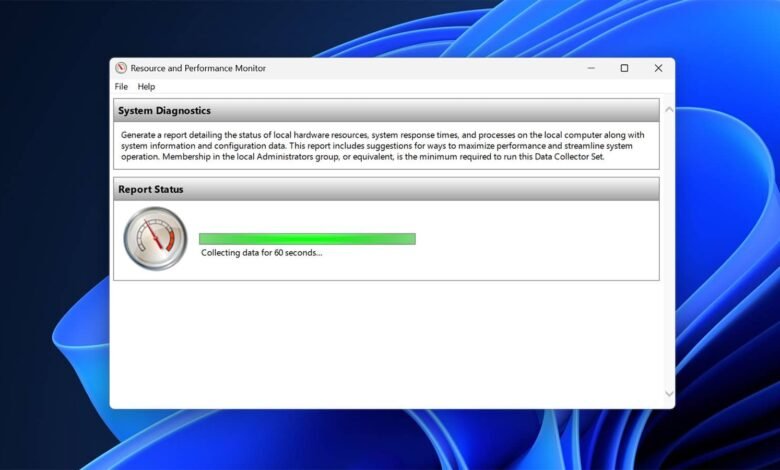
Enterprise-grade system diagnostics remain embedded within the Windows operating system, offering a rapid 60-second audit of hardware and software performance through the “perfmon /report” command. This utility, a legacy of the Windows NT architecture, generates a comprehensive technical overview of a machine’s operational state without requiring third-party software installations.
Upon execution, the Performance Monitor initiates a one-minute data collection cycle, analyzing the processor, memory, disk, and network interfaces. The resulting System Diagnostics Report provides a color-coded assessment of system health, categorizing findings into green for passed checks, yellow for warnings, and red for critical issues requiring immediate intervention.
The tool’s utility lies in its ability to surface specific hardware bottlenecks. In the CPU section, the report monitors the processor queue length; a sustained value greater than two per core typically indicates a processing backlog. Similarly, the memory analysis tracks “pages per second,” a metric that identifies when a system is forced to swap data between RAM and the hard drive, a common cause of significant latency.
Beyond immediate performance metrics, the report captures a snapshot of the system’s configuration. This includes BIOS versions, disk health status, active services, and startup programs. For administrative record-keeping, Windows automatically archives these reports as HTML files located within the system’s performance log directory (C:PerfLogsSystemDiagnostics).
While the tool provides a high-level overview, its effectiveness is limited by its 60-second sampling window. Intermittent issues that occur outside this timeframe may not be captured. For deeper analysis of kernel-level I/O problems or driver-related instability, Microsoft recommends more specialized tools like the Windows Performance Recorder. Additionally, users seeking a historical log of application crashes and update failures are directed to the Reliability Monitor, accessed via the “perfmon /rel” command.
By leveraging these internal diagnostic capabilities, system administrators and power users can identify the root causes of performance degradation—such as antivirus background scans or excessive startup loads—before committing to hardware upgrades or external technical support.