Dual Monitor Setup Benefits: Why a Second Screen Works
Matching pixel density and configuring OS display settings prevents the most common usability issues in multi-screen workspaces.
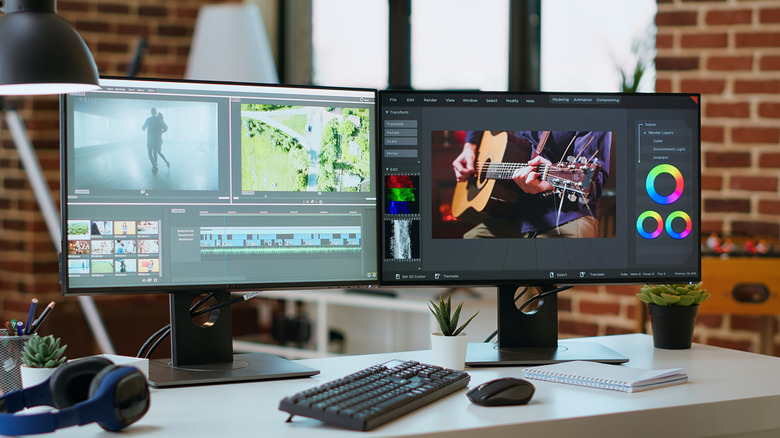
A second display eliminates the constant window-switching that fragments attention during computer work. Rather than alt-tabbing between spreadsheets, email clients, and communication platforms like Microsoft Teams or Discord, users expand their active workspace across two physical screens. This structural shift in how desktop environments are managed reduces cognitive load and directly addresses the friction of digital multitasking.

Research into workstation ergonomics consistently links multiple displays to measurable output gains. A widely cited study by Jon Peddie Research found that adding a second monitor can increase productivity by 20 to 30 percent, depending on the complexity of the tasks involved. The mechanism is straightforward: dragging and dropping files between open applications requires zero navigation when both programs remain visible simultaneously. Insurance professionals cross-referencing policy documents, developers comparing code repositories, and job seekers reviewing listings alongside an active resume all execute these workflows faster without minimizing windows.


The utility extends well beyond traditional office administration. PC gamers frequently dedicate a secondary panel to stream management software, chat overlays, or hardware monitoring tools like MSI Afterburner, keeping the primary display locked in full-screen mode. Content creators recording instructional videos use one screen for scripting and the other for executing the on-camera demonstration. During video conferences, separating the grid of participant faces from a shared document or note-taking application prevents the visual obstruction common in single-screen setups.
Hardware selection for a secondary display does not require matching the specifications of a primary gaming or color-grading monitor. High refresh rates, such as 144Hz or 240Hz panels, only benefit the screen where fast motion occurs. A standard 60Hz monitor suffices for hosting static reference material, communication apps, or background dashboards. However, pixel density—measured in pixels per inch (PPI)—should closely match the primary display. Mismatched PPI causes the operating system to render text and interface elements at different physical sizes, forcing the mouse cursor to jump awkwardly when crossing the bezel gap between screens.
Physical alignment dictates long-term comfort. Both monitors should sit at identical heights, ideally mounted on adjustable VESA-compatible arms rather than relying on factory stands that often differ in elevation. Ergonomic standards established by the Occupational Safety and Health Administration recommend positioning the top of the screen at or slightly below eye level, with the displays placed roughly an arm’s length away. Misaligned dual setups introduce repetitive neck strain that negates any workflow advantage.

Laptop users face specific configuration hurdles when integrating external displays. Connecting two monitors typically requires available video outputs such as HDMI, DisplayPort, or USB-C with DisplayPort Alt Mode support. Modern Apple Silicon MacBooks natively support multiple external displays, though older Intel-based models and certain base-tier M-series chips historically required DisplayLink adapters or docking stations to exceed a single external output limit. Windows laptops generally handle multiple external displays through native GPU drivers, provided the graphics card has sufficient bandwidth.
Operating system behavior must also be adjusted. Users who prefer to close their laptop lid while working exclusively on external monitors need to alter default power settings. In Windows, this requires changing the “Choose what closing the lid does” setting in the Control Panel to prevent sleep mode. On macOS, clamshell mode activates automatically only when the laptop is connected to power and external peripherals.
Software-level organization completes the transition. Both Windows and macOS allow users to define the spatial relationship between monitors in display settings, ensuring the mouse cursor moves logically from left to right or top to bottom based on how the screens are physically arranged on the desk. Third-party window management utilities, such as Microsoft PowerToys FancyZones or Magnet for macOS, further refine how applications snap to specific regions across the expanded canvas.
Most current-generation integrated graphics processors, including Intel Iris Xe and AMD Radeon integrated lines, support driving at least two external displays at 4K resolution at 60Hz without requiring a discrete graphics card.