Windows 11 Adds a Faster Way to Kill Frozen Apps
Force-close frozen Windows programs from the taskbar, Task Manager, or command line

Windows has long balanced user-friendly interfaces with administrative control. The operating system’s everyday shutdown process sends a standard `WM_CLOSE` message through the Win32 API when users click the “X” button or press Alt + F4. Applications can then prompt users to save changes, finish active file transfers, or perform routine memory cleanup before closing.
That sequence does not always fully end an application. Discord, Spotify, Slack, and Telegram may minimize to the system tray—the small group of icons to the left of the system clock—instead of shutting down when the “X” button is clicked. They can continue receiving notifications or running background audio. To close them completely, users must choose an in-app command such as File > Quit or Ctrl + Q, or right-click the relevant system tray icon and select “Quit” or “Close.”
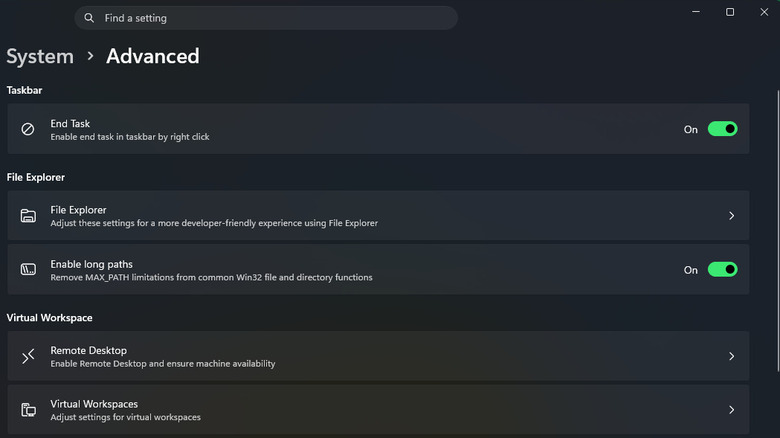
Windows 11 also places a force-close command directly on the taskbar. Microsoft introduced a native toggle that lets users right-click an application’s taskbar icon and select “End Task,” rather than opening a dedicated system utility. The command immediately halts execution at the system level and bypasses the normal application shutdown sequence.


The option is enabled through Windows Settings. Press Windows Key + I, select “System,” open the “Advanced” sub-menu, and activate the “End Task” slider. Afterward, the taskbar context menu shows “End Task” alongside the standard “Close window” command for an active application.
The more established diagnostic utility is Task Manager, which Microsoft software engineer David Plummer originally developed in the mid-1990s. Microsoft officially integrated it into Windows NT 4.0 in 1996, and it has since grown from a basic process list into a comprehensive system monitor.
Users can open Task Manager directly with Ctrl + Shift + Esc. That shortcut bypasses the secure attention sequence screen associated with Ctrl + Alt + Delete, which is managed by the Local Security Authority Subsystem Service (LSASS). Right-clicking an empty area of the taskbar also provides a direct link to Task Manager.
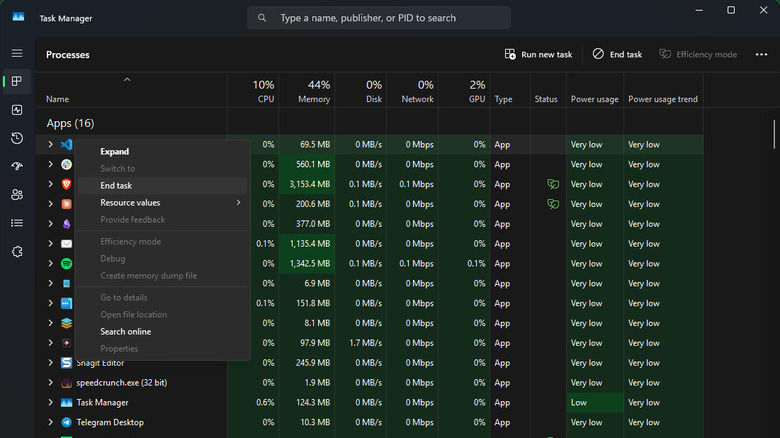
In Task Manager, the “Processes” tab separates active applications, background processes, and core Windows processes. Clicking column headers such as Name, CPU, or Memory sorts the entries and can help locate software consuming excessive resources or contributing to instability.
Selecting an application and clicking “End task” in the upper-right corner terminates it. The same result is available by right-clicking the process and choosing “End task.” This is a hard termination: Windows immediately stops allocating CPU cycles and memory to the process, and unsaved progress is lost.
The process list also contains “Windows Explorer” (explorer.exe), which controls the graphical interface, including the taskbar, desktop, and file directory windows. Task Manager changes the command for this process to “Restart task,” since ending it would leave the user with a blank screen. If explorer.exe is terminated completely, the interface can be restored by selecting “Run new task” in Task Manager and executing “explorer.exe.”
Browsers such as Google Chrome and Microsoft Edge use a multi-process architecture. Separate processes may handle individual tabs, extensions, and hardware rendering, helping prevent one crashed page from taking down the entire browser. Ending one visible window can therefore leave dormant processes operating in the background.
The Task Manager “Details” tab, located on the left side, displays a raw list of Executable (.exe) files. Right-clicking a frozen process there and choosing “End process tree” forces the operating system to terminate the parent application along with every dependent child process it initiated.
Windows also includes the command-line utility `taskkill.exe`, first introduced in Windows XP. It can terminate applications without opening a graphical interface, and its parameters allow users to automate the termination of frozen software. A custom shortcut can be created by right-clicking an empty area of the desktop, selecting New > Shortcut, and entering `taskkill /f /fi “status eq not responding”` in the location field. After clicking Next, users name the shortcut and select Finish.
The `/f` flag tells the utility to force termination. The `/fi` flag applies a filter that targets applications whose operating status is identified by the operating system as “not responding.” The shortcut can be adjusted by right-clicking it, choosing Properties, and assigning a dedicated keyboard shortcut in the “Shortcut key” field. Setting the “Run” dropdown to “Minimized” makes the command prompt execute in the background without interrupting the workflow.
When the Windows interface itself becomes sluggish or stops responding to keyboard shortcuts, third-party utilities provide another option. SuperF4, for example, offers global hotkeys including Ctrl + Alt + F4, which instantly terminates the active foreground window, and Win + F4, which opens a targeting cursor that kills the process the user clicks.
A full system reboot remains the most effective way to clear corrupt memory states and lingering system deadlocks when system-wide instability continues. Recurring application freezes can also be addressed by installing pending software updates, clearing local cache directories, or cleanly uninstalling and reinstalling the problematic program.