Your Monitor Is Becoming the Desktop’s Dock
What Your Monitor’s USB Hub Can—and Cannot—Replace
WASHINGTON — The computer monitor is shifting from a passive visual display to the central connectivity hub of the modern professional workstation. Hardware manufacturers are integrating advanced USB hubs directly into display chassis, combining power, video, and peripheral data streams in unified desktop architectures.
For decades, workspace organization depended on dedicated cables, external docking stations, and independent power adapters. The first monitor hubs were pass-through solutions that still required a dedicated USB upstream cable running alongside the video cable.



Display standards initially operated separately from data-transfer protocols. VGA, introduced by IBM in 1987, DVI in 1999, HDMI in 2002, and DisplayPort in 2006 were designed to carry pixel data and audio. Keyboards, mice, and external storage instead needed separate cables connected directly to the computer’s motherboard or dedicated expansion cards.
The USB Implementers Forum (USB-IF) introduced the USB-C connector standard in 2014. Using DisplayPort Alternate Mode (Alt Mode), a protocol developed by the Video Electronics Standards Association (VESA), one USB-C cable can carry native DisplayPort video signals and standard USB data packets at the same time.
USB Power Delivery (USB-PD) adds a power path to the same connection. Early USB-PD specifications supported lower wattages, while current versions routinely supply between 65W and 100W. The newer USB-PD 3.1 Extended Power Range (EPR) guidelines allow up to 240W, enabling a single display cable to charge demanding laptop computers while driving the screen and managing peripheral networks.
### Monitor Hub Connections and Shared Bandwidth
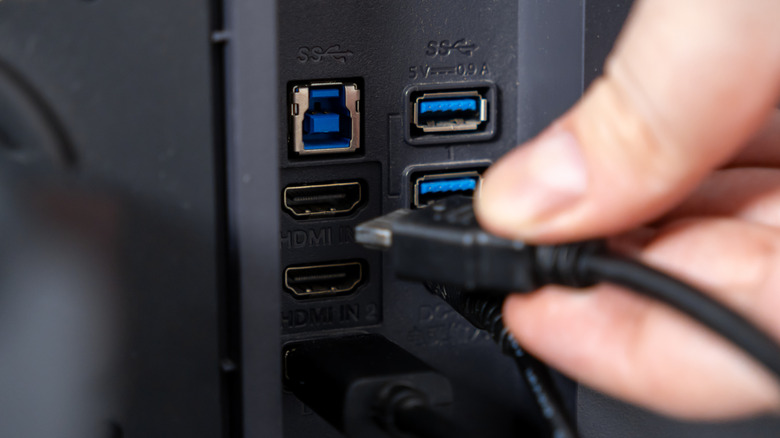
Users working with an integrated monitor hub must distinguish between upstream and downstream connections. The upstream connection is the primary data highway to the host computer. On older or non-USB-C monitors that use HDMI or DisplayPort for video, a separate USB-B or USB-A upstream cable connects the monitor’s internal hub to the PC. Modern productivity monitors use a high-bandwidth USB-C or Thunderbolt connection for that link.
Downstream ports are where accessories connect. They commonly include USB-A ports for legacy devices and USB-C ports for newer peripherals. Data from those accessories travels through the monitor’s internal controller, aggregates at the hub, and moves through the single upstream cable to the operating system.

A monitor with built-in Keyboard, Video, and Mouse (KVM) functionality can include multiple upstream ports, such as one USB-C port and one USB-B port. That arrangement allows two separate computers—for example, a corporate laptop and a personal desktop—to connect to the display simultaneously. When the user toggles the monitor’s input settings, its internal controller routes the keyboard, mouse, and webcam connected to the downstream ports to whichever computer is active on the screen.
The shared connection has fixed limits. A single USB-C cable contains a fixed number of high-speed data lanes, and a 4K panel operating at 60Hz or higher consumes a significant portion of the available bandwidth. The monitor’s internal firmware must allocate the signal around that high-resolution video load.
Dell’s U3223QZ monitor provides manual options for prioritizing resolution or data throughput. In “High Resolution” mode, most of the cable’s high-speed lanes go to the display signal, while downstream USB ports fall to legacy USB 2.0 transfer speeds capped at 480 Mbps. “High Data Speed” mode enables USB 3.0 speeds of up to 5 Gbps or higher for connected peripherals, but may restrict video performance or limit the resolution of built-in components, including throttling the monitor’s integrated 4K webcam to lower capture rates.

The shared bandwidth pool can hinder high-performance external storage devices such as NVMe solid-state drives, which can easily saturate the connection. Monitor-mounted USB ports remain useful for temporary flash drives, external backups, and input accessories, but heavy data-transfer tasks will bottleneck when the display signal monopolizes the upstream cable.
Power behavior also depends on the display’s firmware. When the computer enters sleep mode, some monitors cut power to downstream USB ports as the display goes to sleep, interrupting phone charging or background data transfers. Other models provide menu controls, including Dell’s “Other USB Charging” option, that keep downstream USB ports active and supplying power while the screen is in standby.
Integrated monitor hubs do not completely replace specialized commercial docking stations. Monitors rarely include built-in SD card readers, while legacy connections and dedicated gigabit Ethernet (RJ45) ports are generally reserved for specialized premium displays. Workstations that need specialized legacy interfaces, high-speed networking, or daisy-chained multi-monitor setups beyond standard USB-C bandwidth limits still require a dedicated external dock or Thunderbolt-certified hub for the enterprise workflow.