Samsung’s Side Button Has Become Far More Than a Power Key
How to customize Samsung’s Side Button across Galaxy phones
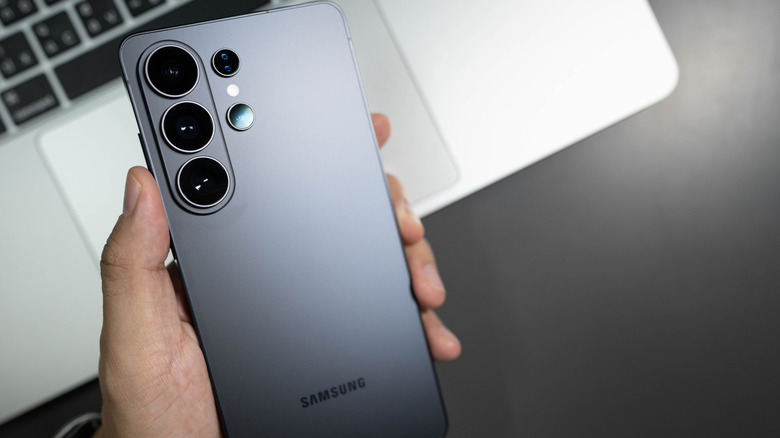
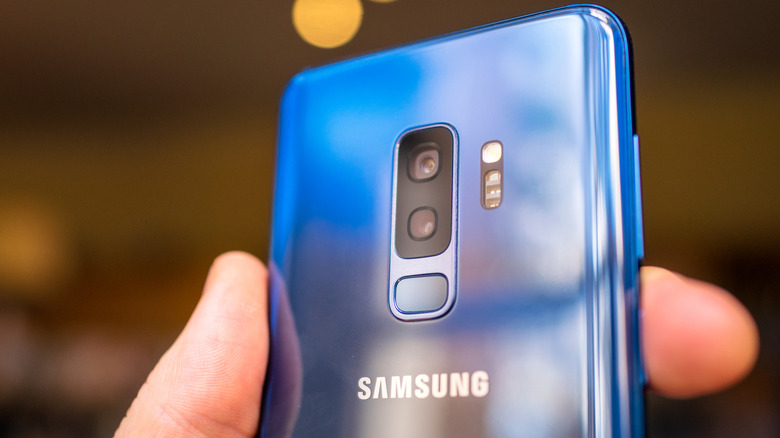
Samsung’s modern side-key configuration began with the Galaxy S8 and S8+ in 2017. To promote its proprietary virtual assistant, Bixby, Samsung placed a dedicated physical button on the left side of the device, directly beneath the volume rocker. Consumers and technology reviewers quickly criticized it because of frequent accidental presses and the lack of native options to disable or remap the button.
Third-party developers created workarounds to remap the key, beginning a cat-and-mouse game as Samsung initially blocked those utilities. The company eventually offered limited official remapping capabilities on the Galaxy S10 series, before retiring the dedicated button entirely with the Galaxy Note 10.
When Samsung Electronics Co. introduced the Galaxy Note 10 series in August 2019, the release officialized the removal of both the traditional dedicated power button and the widely criticized physical Bixby button. Samsung replaced them with one consolidated “Side Button,” a design that marked a permanent shift in the company’s smartphone hardware.


On flagship Samsung phones released since late 2019—including the Galaxy S20 through S24 series, as well as the Galaxy Z Fold and Z Flip foldables—the legacy power button and Bixby button remain unified. A short press turns the screen on or off, while a short press combined with Volume Down captures a device screenshot.
The same key can also be used to open the native camera app with a double press. A long press activates the Bixby voice assistant, and a long press together with Volume Down opens the power-off and restart menu. On Samsung’s foldable hardware, the button has another role: it functions as a physical, capacitive fingerprint sensor for biometric authentication.
Users can change several default actions through the operating system without third-party software or developer access. The path is Settings, Advanced features, and Side button. Within that menu, a double press can open the camera, turn on the flashlight, launch the screen magnifier, initiate Voice Recorder, open Samsung Notes, activate “Modes and Routines,” trigger Samsung Capture, or launch any standard application installed on the device.
The long-press gesture remains primarily limited to virtual assistants and power controls. Users can select the traditional power-off menu or launch an assistant. Although Samsung’s legacy Bixby assistant remains the default, modern updates allow integration with Google Gemini, ChatGPT, Claude, and other digital assistants.

Mapping the side button to Samsung’s “Modes and Routines” gives advanced users access to deeper device automation. The feature was formerly known as Bixby Routines before being rebranded in One UI 5. A double press linked to a specific Routine can trigger macro actions, including a “Driving Mode” that activates Bluetooth, opens a preferred GPS navigation utility, reads incoming text messages aloud, and enables a hands-free auto-reply system.
A professional or student can instead assign a double press to immediately launch Voice Recorder, capturing audio in meetings or lectures without unlocking the phone or searching for the application icon. The side button’s behavior can also change according to the form factor and device state.
When the Galaxy Z Flip is folded shut, a double press launches the “Quick Shot” utility, turning the external cover screen into a camera viewfinder. After the device is unfolded, that functionality shifts back to standard camera operation.
Older hardware has a separate remapping process. The Galaxy S8, S9, and S10 series, along with the Note 8 and Note 9, still feature the dedicated fourth physical button. On those devices, a long press of the Bixby key is permanently hardcoded to launch Bixby Voice.
The single-press and double-press actions on these legacy devices can be partially reassigned. One gesture can be customized to open a chosen application or run a quick command, while the other must remain designated to open the Bixby Home interface. To configure the available preferences, users must open Settings, select Advanced features, and choose Bixby Key.