

Modern smartphone operating systems must balance instant responsiveness with resource preservation. Users expect apps to update as soon as they open, while also wanting maximum battery longevity and minimal cellular data consumption. Apple addressed that conflict with a proprietary multitasking architecture for iOS that regulates how applications behave when they are not actively displayed.
In the early iPhone era, third-party multitasking was nonexistent. Apple co-founder Steve Jobs resisted allowing third-party applications to run in the background because of concerns about severe battery drain and system performance. iOS 4, released in 2010, later introduced basic multitasking APIs for selected activities, including audio playback, location tracking, and VoIP calls.
The system still treats most apps differently from those continuously running tasks. When a user exits an app, it moves from “Active” to “Background” and then quickly enters a “Suspended” state. Suspended apps remain cached in the device’s random-access memory (RAM) for fast switching, but they are frozen and cannot execute code, use the CPU, or drain power. If active tasks require additional RAM, iOS automatically purges those suspended apps.


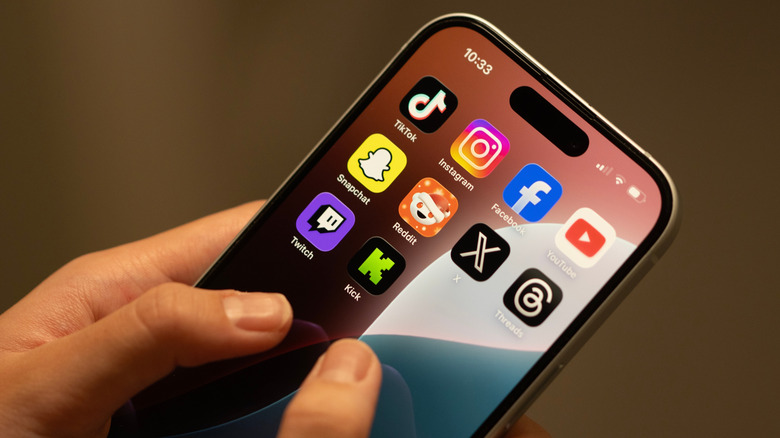
A major change came with iOS 7 in 2013, when Apple introduced “Background App Refresh.” Rather than allowing applications to run continuously, the feature temporarily thaws suspended apps so they can perform brief tasks. Apple uses “opportunistic scheduling,” with iOS watching user habits and system status before deciding when an app should wake.
If someone regularly opens a social media app or news feed at 8:00 AM, for example, iOS may learn the pattern and wake that app at approximately 7:50 AM to fetch new data. The operating system can also bundle wake-up triggers when the phone is already awake, connected to Wi-Fi, or plugged into a power source, reducing additional CPU wake-ups.
Background App Refresh does not control push notifications. Those alerts use the Apple Push Notification service (APNs), a centralized, low-power connection maintained directly between the iOS device and Apple’s servers. When an external server sends a message or alert, APNs delivers the notification packet to the device, and iOS can display the banner or play the alert sound without launching or running the app in the background.
As a result, turning off Background App Refresh for a messaging app does not prevent real-time notifications for incoming messages. After a user taps an alert, however, the app may need a few additional seconds to download and display the full conversation history.
When Background App Refresh is allowed to run, cloud storage services such as Google Photos, Dropbox, and OneDrive can detect new photos and upload them in the background. Weather applications can query location services and download current forecasts, while podcast and media apps can identify and download new episodes.
Social media and news aggregators can also preload current feeds, so users do not encounter loading spinners when launching those apps. The permissions can be adjusted in **Settings > General > Background App Refresh**, where iOS provides both global controls and an app-by-app list.
At the top of that menu, **Off** disables Background App Refresh for every app and maximizes battery preservation. **Wi-Fi** limits background updates to Wi-Fi networks, preventing apps from consuming cellular data plans. **Wi-Fi & Cellular Data** permits updates over any internet connection. Individual app permissions appear below these global toggles.
Apple enables Background App Refresh by default for nearly every installed application, so users may unintentionally allow activity that some apps do not need. Permissions should generally stay enabled for services that depend on real-time sync, including navigation tools, productivity organizers, calendars, and cloud backup utilities. Shopping utilities, travel booking systems, mobile games, food delivery services, and web-browsing tools rarely require the feature and can be toggled off without degrading their core user experience.
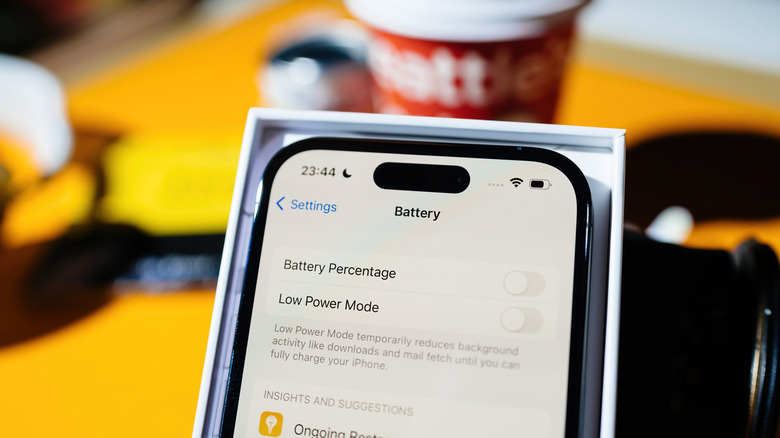
For stronger battery conservation, Low Power Mode overrides normal background behavior. Introduced in iOS 9, it is intended to extend battery life when a device falls below 20% charge, although it can be switched on manually at any time through the Control Center or Battery Settings. Once enabled, it automatically suspends Background App Refresh globally.
Low Power Mode also reduces display brightness, limits the screen refresh rate on supported models, reduces CPU performance, and halts automatic downloads and email fetching. A separate option, Low Data Mode, arrived in iOS 13 for limited cellular plans and metered Wi-Fi networks and can be enabled per network.
For cellular connections, Low Data Mode is located at **Settings > Cellular > Data Options > Data Mode**. On Wi-Fi, users can open **Settings > Wi-Fi**, tap the information (“i”) icon beside the active network, and turn on **Low Data Mode**. The setting pauses automatic updates, suspends iCloud backups, limits background data tasks, and reduces streaming media quality.
Users can also restrict a particular application from using cellular internet. Under **Settings > Cellular**, iOS lists installed apps beside toggle switches. Turning off an app there limits it to Wi-Fi connections; it cannot access the internet through cellular networks in either the foreground or the background.
To identify the heaviest mobile data users, scroll to the bottom of the Cellular settings menu and select **Reset Statistics**. This clears the cumulative data counter, allowing usage habits to be tracked over a specific week or month and helping pinpoint data-hungry applications.




One Comment