NVIDIA DLSS Modes Explained: Best Settings for 1440p and 4K
How internal render percentages affect image clarity and frame rates across different monitor resolutions
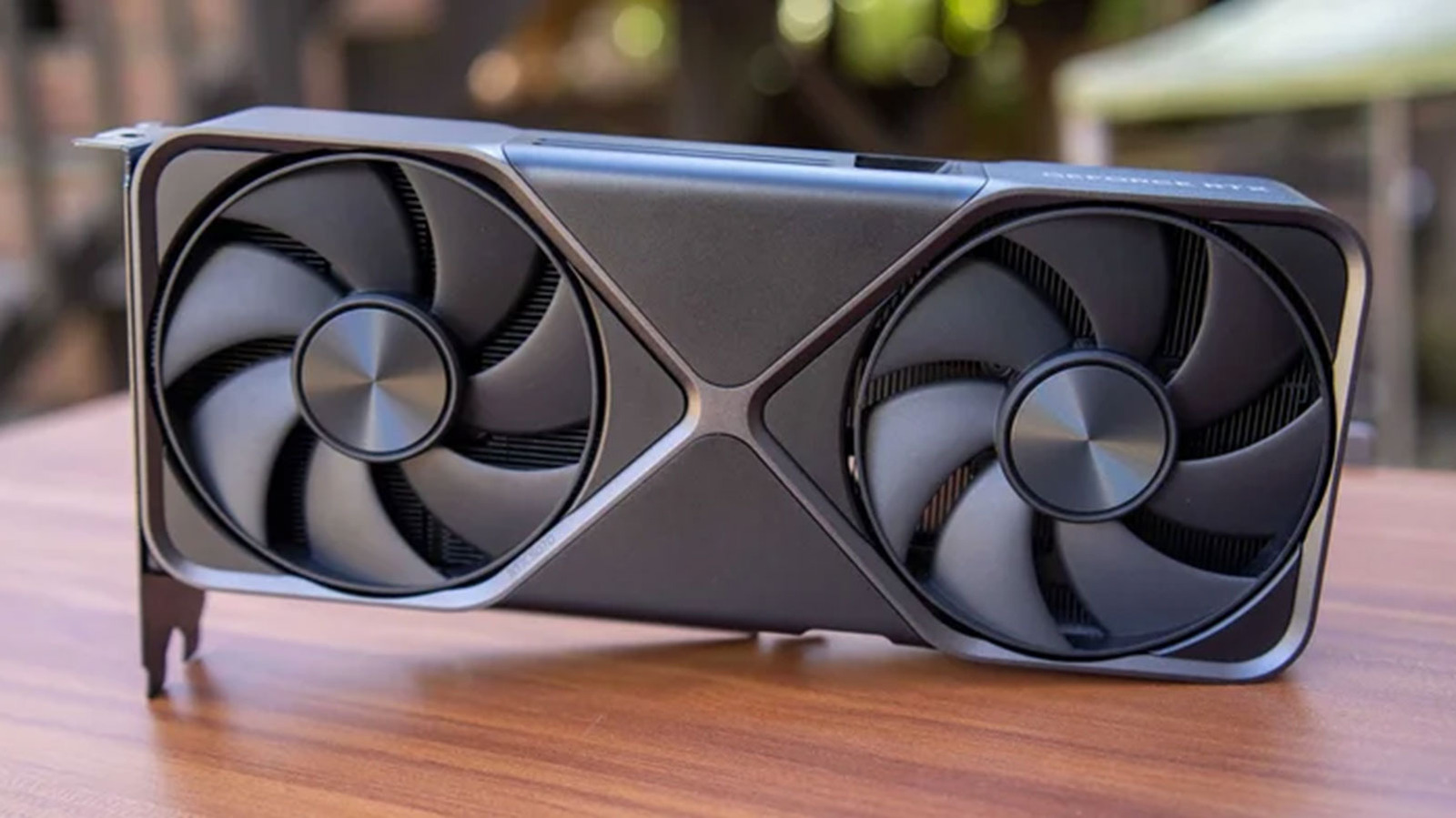
Gamers chasing higher frame rates without buying a new graphics card increasingly rely on NVIDIA’s Deep Learning Super Sampling, but selecting the wrong preset can quietly destroy image clarity. The technology works by rendering frames at a lower internal resolution and using AI-driven upscaling to reconstruct the image at your monitor’s native output. Choosing the correct DLSS mode determines exactly how much of that reconstruction burden falls on the Tensor cores inside GeForce RTX hardware.
The fundamental trade-off in every DLSS implementation is between the internal render resolution and the final target resolution. Setting the display output to match the monitor’s native resolution—such as 2560×1440 for a 1440p panel or 3840×2160 for 4K—is the mandatory first step. From there, the selected preset dictates the starting pixel count the GPU must process before the neural network takes over.
Quality mode renders the game at 66.7 percent of the target resolution. On a 4K display, the GPU internally draws a 1440p image. On a 1440p monitor, it starts at 960p. This preset yields the highest visual fidelity among the options because the machine learning models have the most raw pixel data to interpret motion vectors, depth buffers, and brightness information. Frame rate gains are moderate but consistent.


Balanced mode drops the internal render resolution to 58 percent of the target. A 4K output begins as a 1253p image, while 1440p starts at 835p. Performance mode halves the target resolution entirely, forcing the GPU to upscale from 1080p for 4K displays and 720p for 1440p screens. Ultra Performance mode slashes the internal resolution to 33.3 percent of the target. NVIDIA engineered this specific tier almost exclusively for 8K monitors; applying it to 1440p or 4K panels routinely produces unacceptable blur.
Understanding these percentages matters because DLSS does not behave identically across all resolutions. The AI models require a minimum threshold of source pixels to accurately reconstruct fine details like foliage, distant text, and chain-link fences. When users apply Performance mode to a 1440p monitor, the GPU is only feeding the algorithm a 720p base image. The resulting artifacts—shimmering edges, smeared textures, and temporal instability—often outweigh the frame rate benefits. Conversely, applying Quality mode to a 4K display provides the algorithm with a 1440p base, which contains enough spatial data to produce an image frequently indistinguishable from native rendering.
This resolution dependency explains why the optimal configuration changes based on the hardware. For 1440p gaming, Quality mode serves as the most reliable baseline. If performance targets remain unmet, dropping to Balanced mode is generally the lowest safe threshold before noticeable degradation occurs. For 4K gaming, Balanced mode offers a stronger starting point due to the higher absolute pixel count, with Performance mode available as a secondary option for demanding ray-traced titles.
The evolution of these presets tracks directly with NVIDIA’s architectural shifts. Early implementations running on Turing-architecture RTX 20-series cards struggled with ghosting and blurring even in Quality mode. The transition to Ampere (RTX 30-series) and Ada Lovelace (RTX 40-series) architectures brought updated Tensor cores capable of processing more complex motion vectors per clock cycle. These hardware improvements allowed subsequent software updates to refine how the neural networks handle sub-pixel details and fast-moving objects.
Modern implementations also benefit from the separation of DLSS components. While the core spatial upscaling relies on the modes outlined above, NVIDIA introduced DLSS Frame Generation with the RTX 40-series, utilizing optical flow accelerators to synthesize entirely new frames between traditionally rendered ones. More recently, DLSS Ray Reconstruction replaced hand-tuned denoisers with AI models trained specifically to resolve lighting artifacts in path-traced environments. These features operate alongside the traditional Quality, Balanced, and Performance presets rather than replacing them.
Competing technologies approach the same problem differently. AMD’s FidelityFX Super Resolution historically relied on spatial upscaling algorithms that did not require dedicated AI hardware, though FSR 3.1 and newer iterations have integrated machine learning techniques. Intel’s XeSS utilizes XMX matrix engines on Arc GPUs but also offers a fallback DP4a instruction path for older hardware. Unlike these open-standard alternatives, DLSS remains locked to NVIDIA’s proprietary Tensor architecture, meaning the specific render percentages and model behaviors detailed here apply exclusively to GeForce RTX graphics cards.
Game developers retain control over which DLSS presets they expose within their engines. While Quality, Balanced, and Performance are nearly universal, Ultra Performance is frequently hidden from menus unless the title explicitly supports 8K output or ultra-wide aspect ratios where the base pixel count remains exceptionally high.
NVIDIA continues to update its underlying AI models through driver releases and SDK integrations, with the latest DLSS 3.x and subsequent builds refining temporal stability across all supported presets.