How to Block and Unblock Numbers on Any Android Phone
Block unwanted calls and restore numbers on Samsung and Google Pixel phones
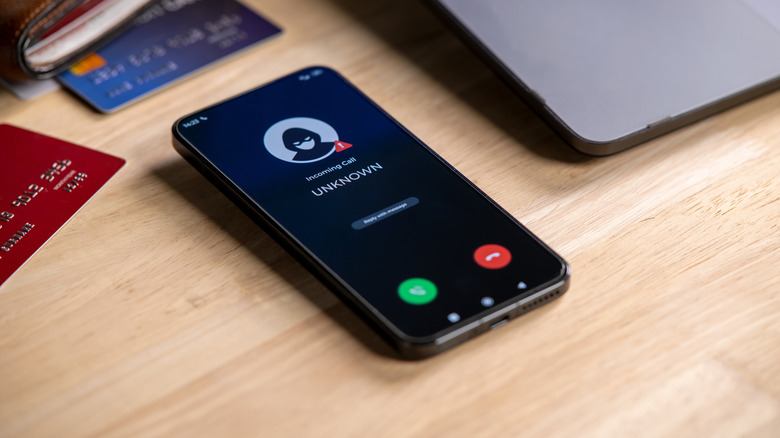
Unwanted robocalls and spam texts remain a persistent nuisance for millions of mobile users in the United States despite federal crackdowns and carrier-grade anti-spoofing protocols. According to industry data from the YouMail Robocall Index, Americans receive billions of automated calls monthly. The Federal Communications Commission (FCC) continues enforcing STIR/SHAKEN caller ID authentication standards to curb spoofed calls at the network level, while smartphones provide the most immediate, reliable defense through built-in call-filtering software.
On Android, call blocking is managed by the phone’s local operating system rather than the carrier’s network. The settings are therefore stored in the device’s internal database. Transferring a physical SIM card or switching an eSIM to another device will not automatically move the block list, so users must re-establish their preferences on the new hardware.
The exact process depends on the manufacturer because Android is customized across different smartphone brands. The two most prominent configurations in the U.S. market are Samsung’s One UI and Google’s stock Android interface, found on Pixel devices.

Samsung, the leading manufacturer of Android smartphones globally, offers built-in blocking through either the Contacts app or the Phone app. To restrict a saved contact, open **Contacts**, select the contact, tap **More**, and choose **Block contact**, then confirm.
For a number that is not saved in the directory, open the **Phone** application and locate the number in the recent logs. Copy it, tap the **More** icon represented by three vertical dots, and select **Settings**, followed by **Block numbers**. Choose **Add phone number**, paste or type the number, and tap the **plus (+)** icon.
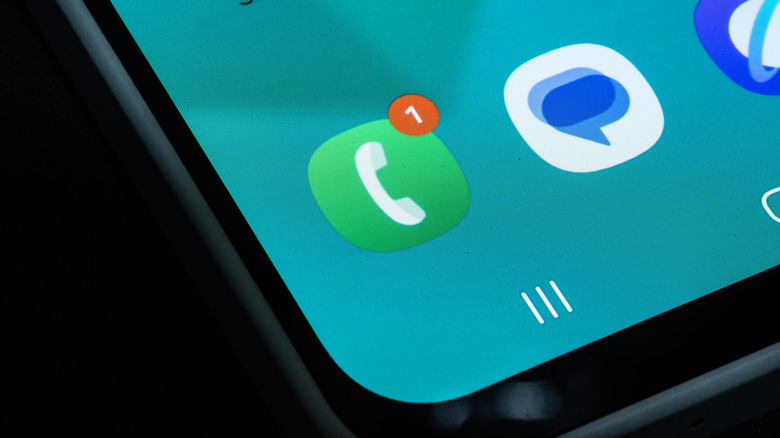
A recently received unwanted call can also be blocked without navigating through those menus. In Samsung’s **Phone** app, open the **Recents** tab, select the number, choose **Details**, tap **More Options**, and select **Block number**.
Google Pixel phones and devices using an unmodified stock Android interface use Google’s system dialer. The dialer also lets users report spam numbers directly to Google to improve crowd-sourced spam detection. To block a number, open **Phone**, tap the **More** icon with three vertical dots, select **Call history**, choose the relevant call entry, and tap **Block/report spam**.
After a number is added to the block list on either system, the device automatically declines incoming calls from that source before the phone rings. Text messages from blocked senders are silently redirected to a designated spam or blocked folder.
Removing a restriction restores communication, but calls or text messages attempted during the blocked period are permanently lost. They are not recorded in the device’s call history or messaging database and cannot be retrieved retroactively after the number is unblocked.
On Samsung, a contact can be restored through **Contacts**. Open the application, select the restricted contact, tap the **More options** icon with three vertical dots, and choose **Unblock contact**.
Samsung’s Phone app provides another route. Open **Phone**, tap the **More** icon with three vertical dots, choose **Settings**, and select **Block numbers**. Tap the **minus (-)** icon next to the number to remove it from the list.
For a Google Pixel or another stock Android device, open **Phone**, tap the **More** icon with three vertical dots, and select **Settings**. Tap **Blocked numbers**, locate the number, and choose the **Clear (X)** icon beside it to restore normal calling and messaging privileges.