Windows 11 Battery Drain: Settings That Cut Laptop Power Use
Reduce x86 laptop power use without changing hardware
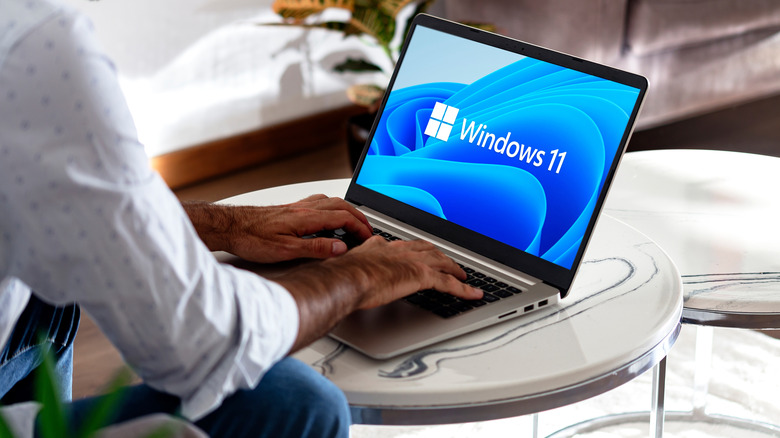
The personal computer industry is undergoing a structural shift in mobile silicon architecture, with traditional x86 instruction sets increasingly diverging from ARM-based platforms. Windows PCs built on Qualcomm Snapdragon X series processors can achieve extended battery endurance, although the vast majority of installed laptops still rely on x86 processors from Intel and AMD.
On traditional x86 mobile devices, Microsoft Windows 11’s operating system background overhead remains a battery-management challenge. High baseline power consumption can quickly exhaust mobile power reserves under standard workloads. Some users therefore adopt Linux, which features lower baseline system overhead, or reconfigure Windows 11’s internal power-management parameters.
Windows 11 regulates hardware energy consumption through Advanced Configuration and Power Interface (ACPI) standards. These standards govern central processing unit (CPU) performance states, known as P-states, as well as low-power idle states called C-states. Operating system settings directly alter these parameters to throttle or boost hardware performance according to power availability.


The first layer of control is available through the Windows 11 Settings interface, which opens with the `Win + I` shortcut. Under `System > Power & battery`, Microsoft’s integrated Energy Saver mode unifies power-budgeting functions across mobile form factors. It can be triggered manually or configured to activate at a specified battery percentage threshold.
Energy Saver dampens background telemetry, halts non-essential sync operations, restricts display output brightness, and turns off desktop visual composition effects. Display panel illumination itself is one of the largest sources of continuous energy consumption in modern laptops, often accounting for 30 to 50 percent of total platform power draw depending on overall nit brightness.
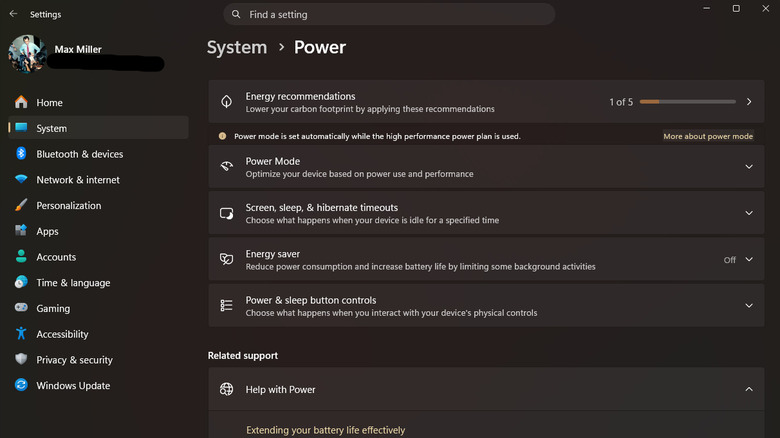
Brightness can also be adjusted through the Windows 11 Quick Settings overlay using the `Win + A` keyboard shortcut. Lowering backlight output extends battery life, while more aggressive CPU control is available through the legacy Windows Control Panel.
After launching the Control Panel, users can navigate to `Power Options > Change plan settings > Change advanced power settings` to expose detailed system control trees. In the `Processor power management` sub-menu, both the `Minimum processor state` and `Maximum processor state` can be adjusted.
Lowering the maximum processor state below 100 percent caps CPU operating frequencies. This prevents the processor from engaging aggressive Turbo Boost clock speeds or elevated voltage states, reducing overall electrical power draw and thermal output through artificial underclocking.
Windows 11’s graphical rendering depends on hardware-accelerated composition managed by the Desktop Window Manager (DWM). Window transparency and interface animation effects require continuous processing by integrated graphics processing units (iGPUs), adding to the work performed by the graphics subsystem.
Those elements can be disabled through `Settings > Accessibility > Visual Effects` by switching off `Transparency effects` and `Animation effects`. Users can reduce render overhead further by entering “performance” in the Start menu search bar, opening `Adjust the appearance and performance of Windows`, and selecting `Adjust for best performance`.
That configuration disables drop shadows, smooth scrolling, and font antialiasing modifications. It reduces graphics subsystem load on entry-level hardware, while background applications can continue affecting both idle and active battery discharge rates.
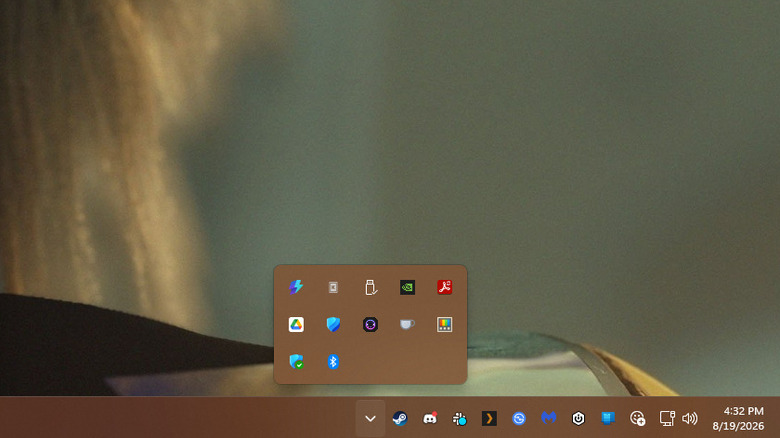
Programs running silently in the system notification area, located on the right side of the taskbar and expandable through an upward overflow arrow icon, continue using memory space and CPU interrupts. Right-clicking unused background applications and exiting them stops their execution loops.
For more detailed monitoring, Windows Task Manager can be launched with `Ctrl + Shift + Esc`. It supplies real-time telemetry for active processes and sorts system impact by CPU, memory, disk, and network utilization. Unfamiliar entries under the `Processes` tab can be researched online through Task Manager’s contextual menu before termination.
Task Manager also allows users to manage startup entries and stop applications from launching at boot. Open-source automation scripts such as Chris Titus Tech’s WinUtil can be used to remove telemetry services and background tasks.
Web browsers are another source of operational power consumption because of their multi-process tab architectures and persistent background JavaScript execution. Chromium-based browsers include resource-throttling tools intended to suspend idle browser tabs.
Google Chrome’s “Memory Saver” mode and Microsoft Edge’s “Sleeping Tabs” feature automatically freeze inactive background tabs. They free up RAM and pause background timer executions until the user re-engages a tab. Grouping tabs, moving unneeded pages into bookmark structures, or closing idle browser windows further reduces the baseline memory footprint and lowers hardware power demands while operating away from an external power supply.