Fix Outlook’s “Your Message Can’t Be Displayed Right Now” Error
Clear Outlook cache and browser data to restore missing message bodies

Microsoft Outlook serves hundreds of millions of corporate, governmental, and personal accounts each day, remaining a cornerstone of global enterprise communication. Yet its dependence on localized client caching across desktop applications and web browsers can create data synchronization bottlenecks. One recurring disruption appears as the inbox rendering error: “Your message can’t be displayed right now.”
First introduced in 1997 with the Microsoft Office 97 suite, Outlook has developed from a standalone desktop email client into a cloud-integrated platform connected to Microsoft 365 and Exchange Online infrastructure. Its modern versions use background data caching for faster mail retrieval, search indexes, and offline access. Unexpected network drops, application crashes, or browser updates can corrupt, overload, or desynchronize local cache files from cloud server endpoints, leaving message metadata visible in the inbox while the message body fails to render.
For Outlook on the web, users can test mailbox functionality in a private or incognito browsing window. These modes disable third-party browser extensions by default. If email content appears correctly there or in another browser, extensions should be disabled individually to identify and remove the conflicting software.


Microsoft routinely issues out-of-band updates and emergency patches for stability problems affecting Outlook desktop and web clients, including memory leaks, service connectivity outages, and rendering bugs. Technical support also covers enterprise environments such as NASA, where support teams handle Microsoft 365 access and configuration requirements for crew members preparing for the Artemis II lunar mission.
Clearing local temporary files is a standard administrative response to the rendering error. Purging cached data makes Outlook establish a clean handshake with Microsoft Exchange servers and retrieve fresh message copies without compromising stored account information, calendar items, or contact lists.
For Microsoft Edge, users should first pause account synchronization so that browser profile synchronization does not replicate cached data across multiple logged-in devices. Select the three-dot menu in the upper-right corner, open **Settings**, select **Profiles**, choose **Sync**, and toggle off the active synchronization features. The options can be enabled again after troubleshooting.
Open the active Outlook web interface, select the **Lock icon** on the left side of the address bar, and go to **Cookies and site data** > **Cookies**. Under the Outlook domain’s **Allowed** section, highlight every listed entry, click **Remove**, refresh the browser tab, and log back into the account.
If Edge still does not restore message rendering, open the Outlook web page and press **F12** to open the developer panel, or choose **Open DevTools** if prompted. Click the **Plus icon** in the panel’s upper toolbar and select **Application**. In the left sidebar, open **Storage**, check every applicable category under **Clear site data**, click **Clear selected**, refresh the page, and re-authenticate.
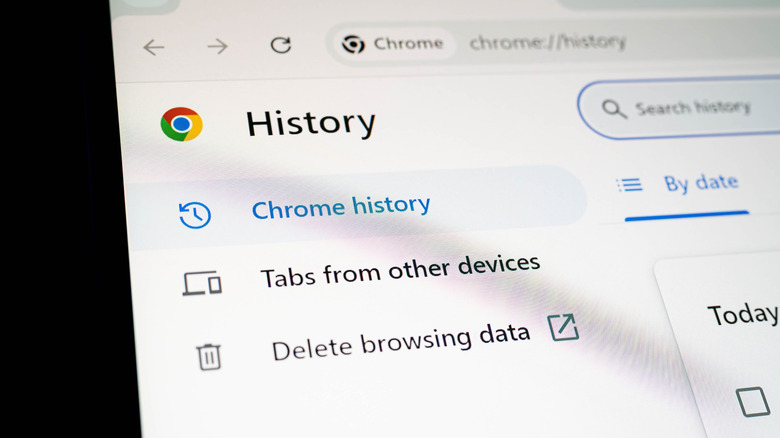
Google Chrome users can open the Outlook web application, press **F12** to launch Developer Tools, and, with the panel active, right-click the browser’s **Refresh button** beside the address bar. Select **Empty Cache and Hard Reload**.
Chrome also allows site data to be removed through the site control menu. Click the **Site information icon** to the left of the address bar, select **Cookies and site data**, choose **Manage on-device site data**, delete all associated domain storage entries with the trash icon, and reload the page.
Mozilla Firefox users should open the Outlook web application tab, click the **Shield icon** to the left of the URL address bar, select **Clear cookies and site data**, confirm by clicking **Clear**, and reload the webpage before signing back in.
In Apple Safari, open the main toolbar at the top of the screen, select **Safari**, and choose **Settings**. Open the **Privacy** tab, select **Manage Website Data**, enter “Outlook” in the search field, select the identified domain entries, click **Remove**, and reload the Outlook web page to complete re-authentication.
On Windows desktop installations, Outlook stores temporary preview streams, auto-complete data, and operational files in a system folder called `RoamCache`. Removing those files resets local stream data without deleting the primary Outlook Data File (.pst or .ost).
Close the Outlook desktop application completely, then press **Windows Key + R** to open the **Run** dialog box. Enter `%localappdata%MicrosoftOutlookRoamCache` and press **Enter**. Highlight every file inside the `RoamCache` directory and delete them with the **Delete** key or context menu. Relaunch Outlook so it can regenerate cache files from the Exchange server.
On macOS, Outlook manages profile databases through internal application controls. Open Outlook, select **Tools** from the top menu bar, and click **Accounts**. Select the affected email account from the left-hand navigation column, click the **three-dot menu icon** at the bottom of the pane, choose **Reset Account**, and confirm the operation.
Network ad-blockers, aggressive privacy-oriented extensions, and custom security scripts can block the background JavaScript requests Outlook uses to retrieve email bodies. When clearing cache does not restore message visibility, these third-party software layers remain a possible source of the browser conflict.
If a localized cache reset does not resolve the rendering error on a desktop client, full removal and reinstallation of the Microsoft 365 software package is recommended to clean corrupted registry paths and installation files.