How to Check CPU Temperature and Stop PC Overheating
Free diagnostic tools and maintenance steps to prevent thermal throttling and protect expensive hardware from rising chip prices.
Sustained processor heat degrades silicon, triggers emergency shutdowns, and forces expensive hardware replacements. For users navigating a market where both AMD and Intel have raised CPU prices repeatedly throughout 2026, maintaining safe operating temperatures is no longer optional maintenance. It is a financial necessity.
Modern processors generate significant thermal output under load. When cooling systems fail to dissipate that heat efficiently, the chip activates thermal throttling—a hardware-level defense mechanism that deliberately reduces clock speeds to lower temperatures. Users typically experience this as sudden frame drops in games, stuttering during video rendering, or unexplained system sluggishness. If throttling fails to bring the temperature down, the motherboard will force a hard shutdown to prevent permanent physical damage to the silicon die.
Windows does not natively display real-time core temperatures in its standard interface, forcing users to rely on third-party diagnostic software. HWiNFO remains the industry standard for granular hardware telemetry, exposing per-core temperature readings, voltage data, and fan speeds through its Sensors tab. Lighter alternatives like Core Temp focus exclusively on processor metrics with minimal background resource usage, while HWMonitor provides a broader overview of motherboard, GPU, and drive temperatures simultaneously.


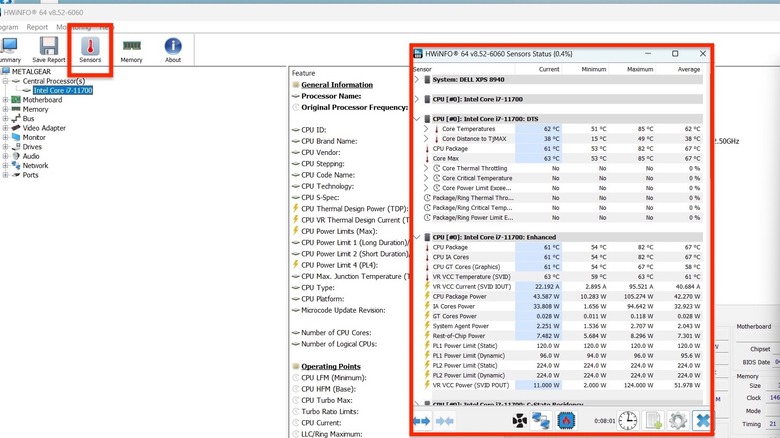
Establishing a baseline requires monitoring the processor across different workloads. An idle desktop should generally sit between 30 and 45 degrees Celsius. Under heavy sustained loads—such as compiling code, running AAA games, or exporting high-resolution video—temperatures between 60 and 80 degrees Celsius are normal for most modern architectures. Readings consistently pushing past 85 degrees Celsius warrant investigation, and anything approaching or exceeding 95 degrees Celsius indicates an immediate cooling failure. These thresholds vary by specific architecture; Intel’s recent Raptor Lake Refresh chips and AMD’s Ryzen 9000 series have different maximum junction temperatures (TjMax) defined by their manufacturers.
Software bloat frequently mimics hardware failure. A rogue background process consuming excessive CPU cycles can artificially inflate temperatures without any physical defect. Opening Windows Task Manager and sorting processes by CPU utilization quickly identifies applications monopolizing resources. Terminating unnecessary startup programs prevents the processor from idling at elevated clock speeds.
When software optimization fails to resolve thermal spikes, the issue shifts to physical airflow. Desktop towers accumulate dust rapidly, clogging intake filters, heatsink fins, and fan blades. This buildup acts as insulation, trapping heat inside the chassis. Clearing the interior with compressed air restores proper ventilation. Laptop users face a more constrained challenge due to compact chassis designs, but elevating the device or using a dedicated cooling pad can significantly improve bottom-panel airflow.
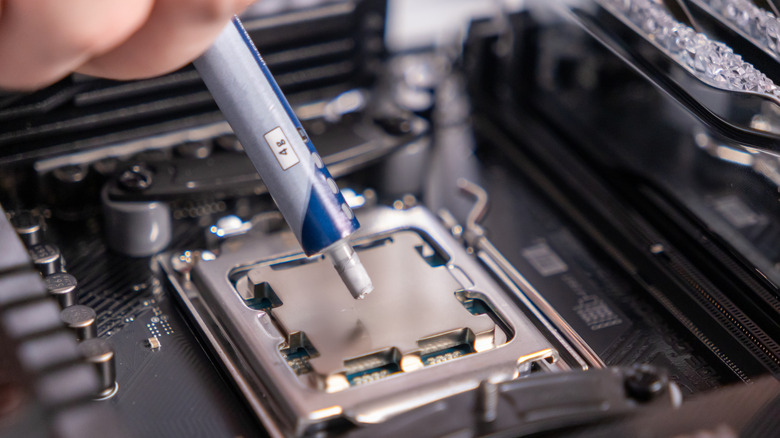
Thermal interface material degradation represents another common culprit. The thermal paste bridging the gap between the CPU’s integrated heat spreader and the cooler base plate dries out and loses conductivity over time, particularly in systems older than three years. Repasting requires removing the cooler, cleaning the old compound with isopropyl alcohol, and applying a fresh layer. High-performance pastes utilizing carbon-based or liquid metal compounds offer superior thermal transfer compared to stock factory applications, though liquid metal requires careful handling to avoid short-circuiting nearby motherboard components.
Users attempting to overclock their processors must pay even closer attention to these metrics. Pushing voltage beyond factory specifications exponentially increases heat generation, often requiring aftermarket tower coolers or all-in-one liquid cooling loops to maintain stability. Consulting the specific processor’s datasheet for maximum safe voltages and thermal limits is mandatory before altering BIOS settings.
The urgency of proactive thermal management aligns directly with current semiconductor pricing trends. Both major x86 manufacturers implemented price hikes earlier this year, citing increased fabrication costs and surging demand driven by artificial intelligence infrastructure. With replacement parts growing more expensive, routine temperature monitoring and basic hardware maintenance remain the most effective methods for extending a computer’s operational lifespan.