The Roku Engineering Backdoors for Freezes, Overheating, and Glitch Rates
Hidden Roku sequences expose the diagnostics behind freezes, overheating, wireless interference, and app instability.
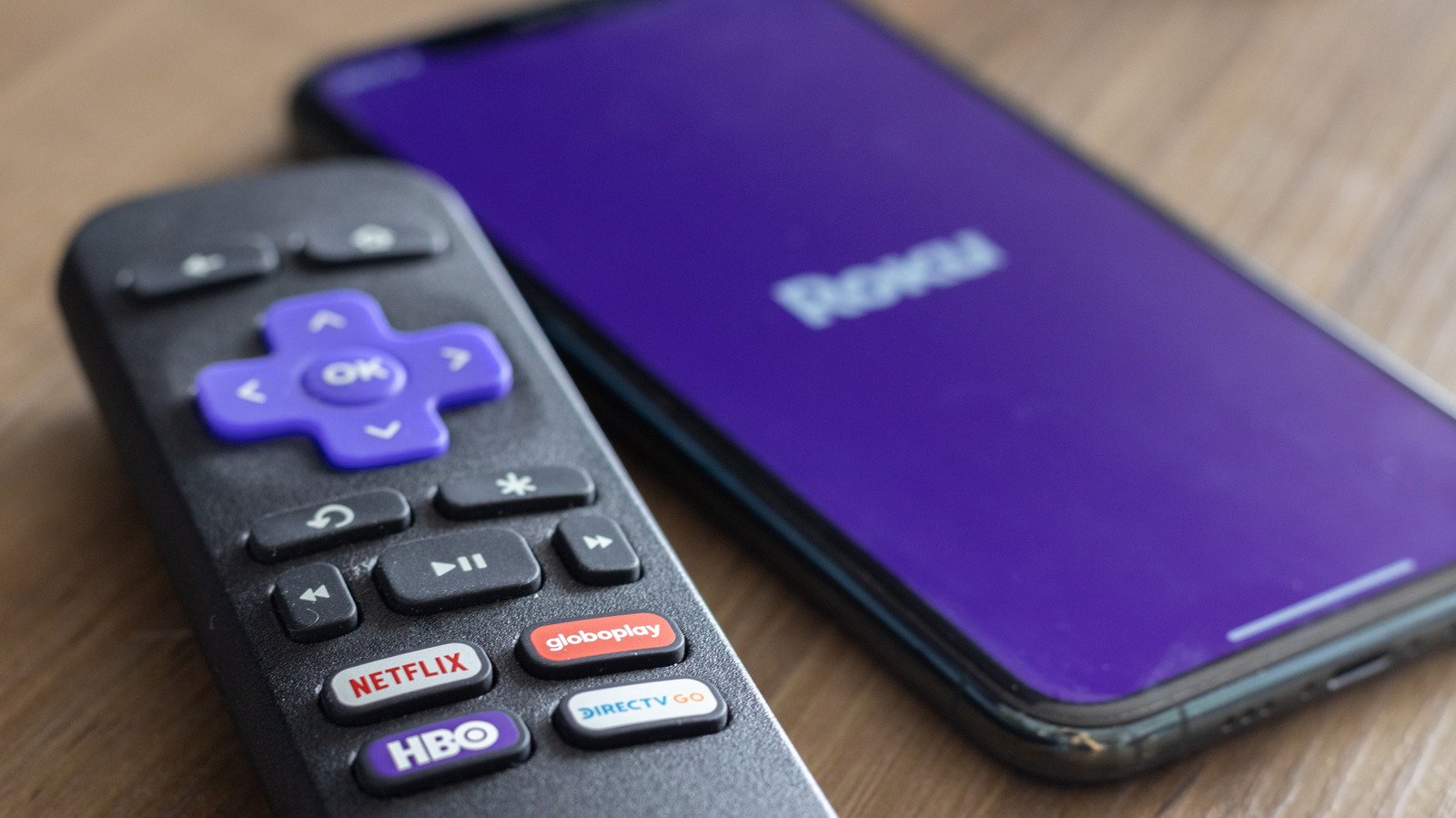
App freezing, interface lag, unexplained reboots, and stream drops can point to different failures inside a Roku device. The hidden menus expose the measurements and recovery tools that help separate hardware instability from network congestion. These Roku secret menu codes trigger low-level screens immediately after the final button press rather than guiding you through the normal consumer interface.
Hardware diagnostics live behind Home × 5 > Fast Forward > Down > Rewind > Down > Fast Forward. The Platform Secret Screen exposes memory usage, remote battery levels, device temperature, IPv6 settings, remote button usage, and RF remote diagnostics. Memory pressure can help identify software instability, while the temperature reading shows whether the system-on-chip is approaching a thermal limit. The screen also provides the Roku platform secret screen controls used to inspect the device before resorting to recovery procedures.
Streaming sticks operating above 105°C / 221°F can enter thermal choke conditions and reboot without an obvious error. Wall-mounted televisions can restrict airflow around the stick, and an under-powered USB port can contribute to unstable operation. The temperature telemetry belongs beside the hardware checks rather than being treated as a simple battery or status display. Remote RF diagnostics can also reveal connection problems that appear alongside physical placement or interference issues.
Home × 5 > Fast Forward × 3 > Rewind × 2 opens the reset and update screen for hard lockups. From there, you can initiate a factory reset, start software updates, and test the USB port. A factory reset can address repeatedly crashing streaming apps, a frozen startup screen, or persistent software glitches, while the USB test helps investigate power-related instability. This is the core of Roku overheating troubleshooting secret screen work: compare the temperature reading with the USB result before treating every reboot as an application fault.
For an immediate restart, press Home × 5 > Up > Rewind × 2 > Fast Forward × 2. The shortcut reboots the device directly instead of opening the broader recovery console.
Stream buffering can come from a weak signal, but it can also come from packet loss caused by local radio interference. The Wireless Secret Screen exposes signal strength and a real-time glitch rate, which functions as a packet-loss counter. That is different from the standard UI “Check Connection” speed test: the latter reports general connection performance, while the glitch rate can show 5GHz channel interference without requiring a home-router reboot.
Press Home × 5 > Up > Down > Up > Down > Up to open the Wireless Secret Screen. It also provides speed tests and a network reset. The Roku wireless secret screen glitch rate is useful when a connection appears fast in a conventional test but playback still stutters.
Basic network identity and routing information are available through Home × 5 > Right > Left > Right > Left > Right. The Network Settings screen shows the connection, bandwidth saver mode, IP address, and MAC address. Use this layer to verify local network assignment separately from the wireless screen’s radio-level packet data.
Application failures require a different diagnostic path. Home × 3 > Up × 2 > Left > Right > Left > Right > Left opens the Channel Info Menu, where you can see the versions of applications such as Netflix or Kanopy. The same screen supports troubleshooting, uninstalling, or rebooting individual Roku apps, allowing an app-level problem to be isolated instead of immediately resetting the entire device.
That makes the Channel Info Menu relevant to how to fix Roku app crashing developer menu workflows: first identify the affected application and its version, then use the available app controls before moving to a device-wide reset. The menu does not replace the hardware checks, since an app crash and an operating-system freeze can produce similar symptoms.
Custom testing lives behind Home × 3 > Up × 2 > Right > Left > Right > Left > Right. The Developer Settings menu provides access to the developer installer and testing environment. Roku has shifted away from legacy uncertified public channel codes toward private web-portal side-loading. After the sequence opens the Developer Screen, use the local IP address displayed there to reach the portal, set an internal device password, and enable custom .zip builds for installation.
This is the developer menu’s role in Roku remote button combinations diagnostics: it provides a controlled way to test custom applications, while the Channel Info Menu handles installed-channel inspection and app operations. The two screens address different stages of the application lifecycle.
Remote connection drops can overlap with display-pipeline problems when a device is crowded behind a television or near other electronics. The Platform Secret Screen’s RF remote diagnostics can be read alongside the HDMI screen, which opens through Home × 5 > Down > Left > Up > Up > Up and exposes input settings, refresh rate, and resolution performance. These Roku HDMI reset shortcut controls help check whether the display handshake and refresh behavior are contributing to an unstable viewing setup.
Ad caching and screenshot rendering are handled through another engineering interface. Home × 5 > Up > Right > Down > Left > Up opens Secret Screen 2, where you can cycle through the image service, screenshot output format, screenshot output settings, and ad channels. The menu also lets you adjust the ad experience at the service level. A restart may be required before changed ad preferences take effect.